


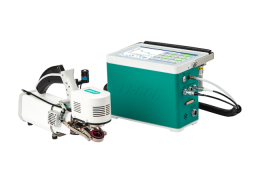
The Constants tab provides access to settings that describe the system, sample, and other user-settable constants. The form of the constants tab depends upon which chamber is attached. Here we describe system constants and user constants that are common to all chambers. Additional details on gas exchange constants, leaf measurement constants, and fluorometry constants are in the following sections:
- Constants specific to leaf-level gas exchange are in Constants.
- Constants specific to aquatic gas exchange are described in Constants.
- Constants specific to fluorometry are described in Computation Parameters.
Constants are recorded in the Header of the data file (Table 4‑10) or in columns if the setting was applied in log options.
Note: Some Constants groups can be automatically prompted for as part of a manual log button press. This is enabled via the Prompt on (manual) log control found on the Log Files > Logging Options screen.
System constants
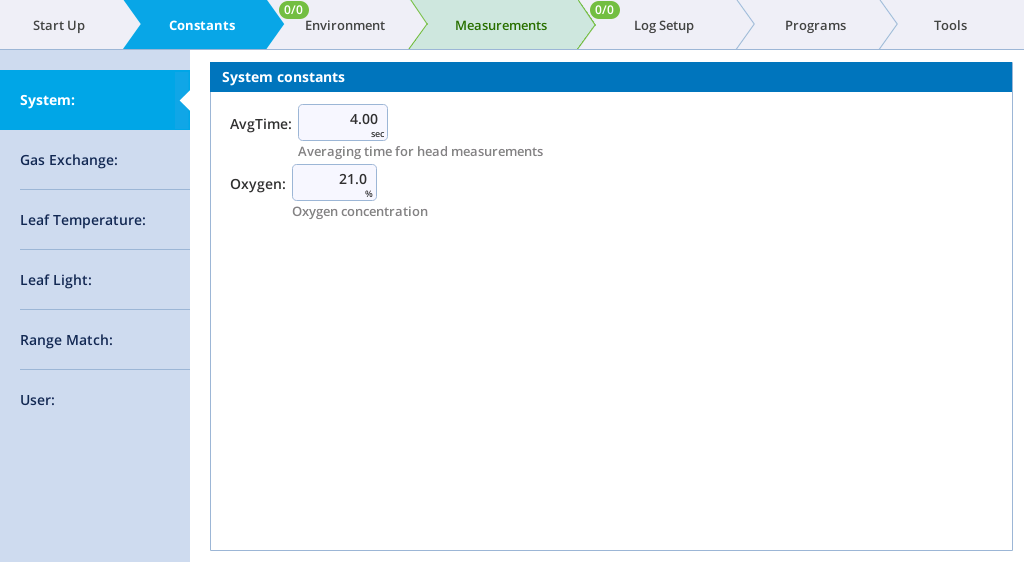
System constants present two user-settable values: Averaging time for measurements in the head (AvgTime) and Oxygen concentration. Typically, you'll use 4 second averaging and 21% oxygen for measurements in ambient air. You should change this value if you are using a low-oxygen tank (such as 0.5% or 2%).
System constants are unlike the other LI-6800 constants (i.e. Gas Exchange, Leaf Temperature, etc.) in that their values are “baked in” to the raw measurements, and hence cannot easily be retroactively changed. Therefore, it is best to have the system constants set correctly prior to logging data.
Gas Exchange
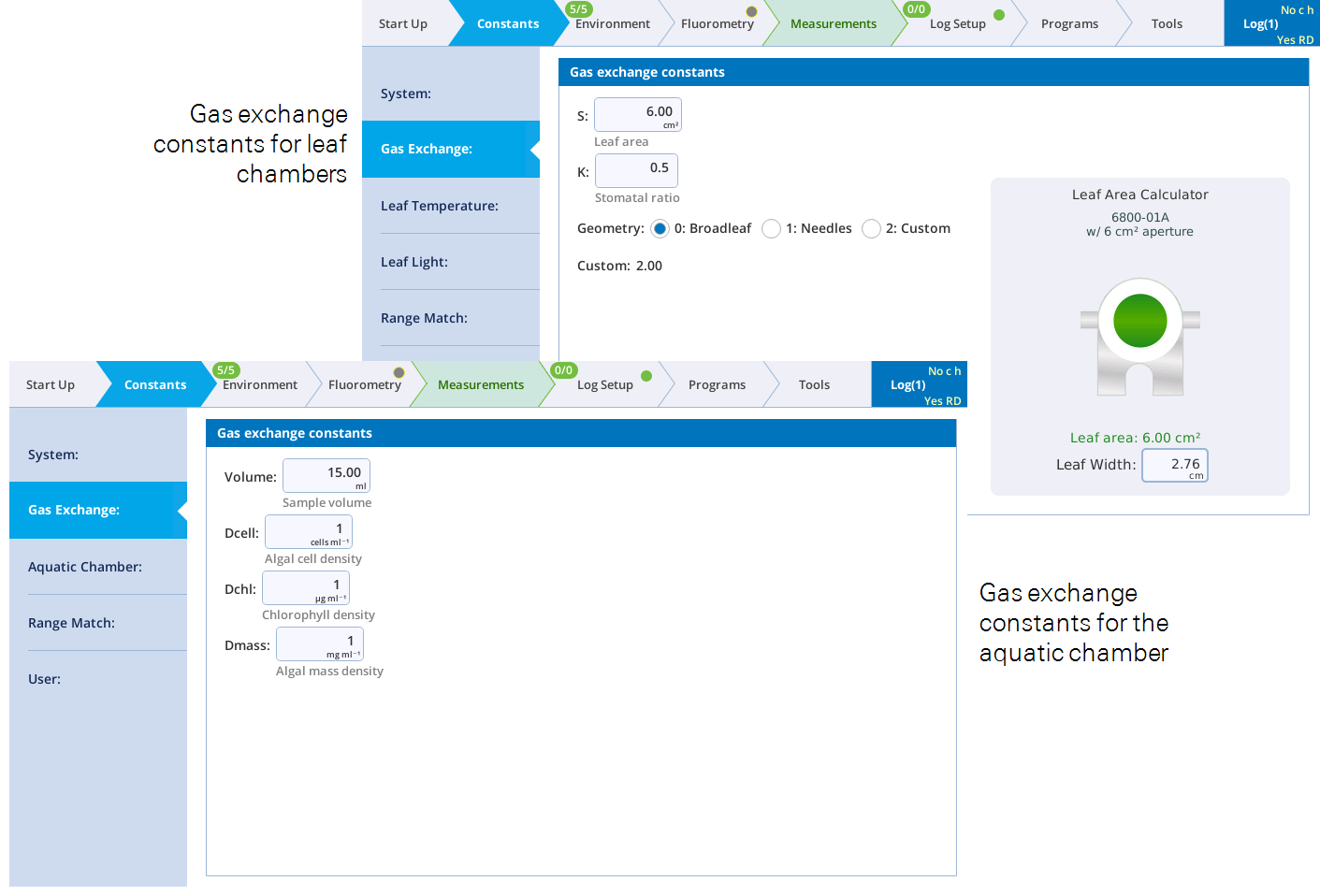
The gas exchange constants available depend upon the chamber that is attached:
Leaf Temperature
For leaf chambers, you can choose options for how leaf temperature is computed. See Leaf temperature for details.
Leaf Light
For leaf chambers, you can set parameters for the leaf light environment. See Leaf light for details.
Aquatic Chamber
When the aquatic chamber is attached, the Leaf tabs are hidden and the Aquatic tab is displayed. See Aquatic Chamber constants for details.
Range Match
Range matching is used in leaf-level gas exchange measurements. See Matching the IRGAs for details.
User
User constants are user-settable fields. You might use a User Constant to record in the file which replicate you are on, which species, who is collecting the data, or other information that you want to collect. User-defined items include user-defined equations (variables) and constants.
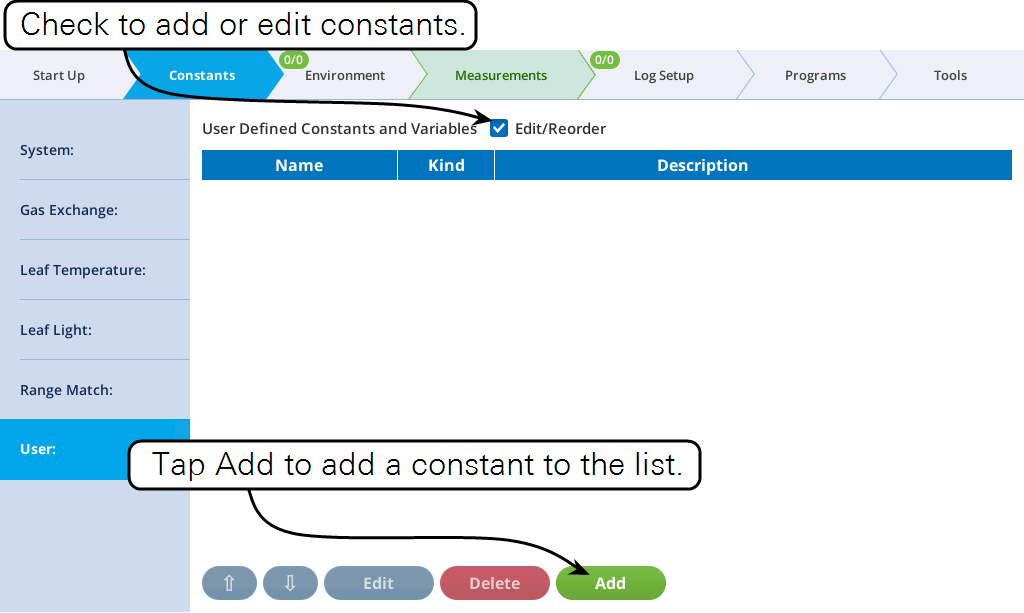
When you first open the Constants > User tab, it will be empty.
Editing user constants
Check the Edit/Reorder box to enable editing. You can add a new item, reorder, edit and delete existing items.
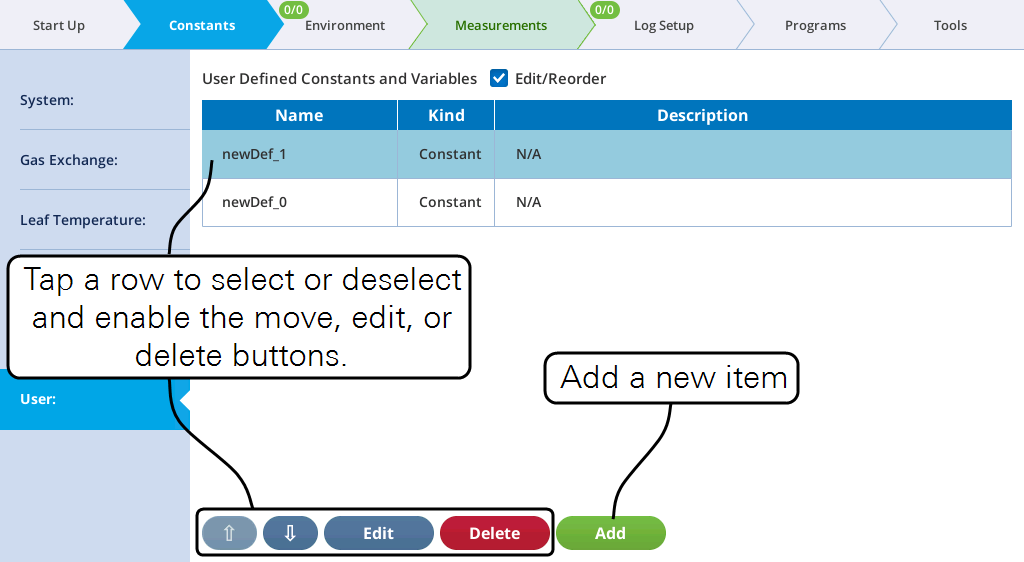
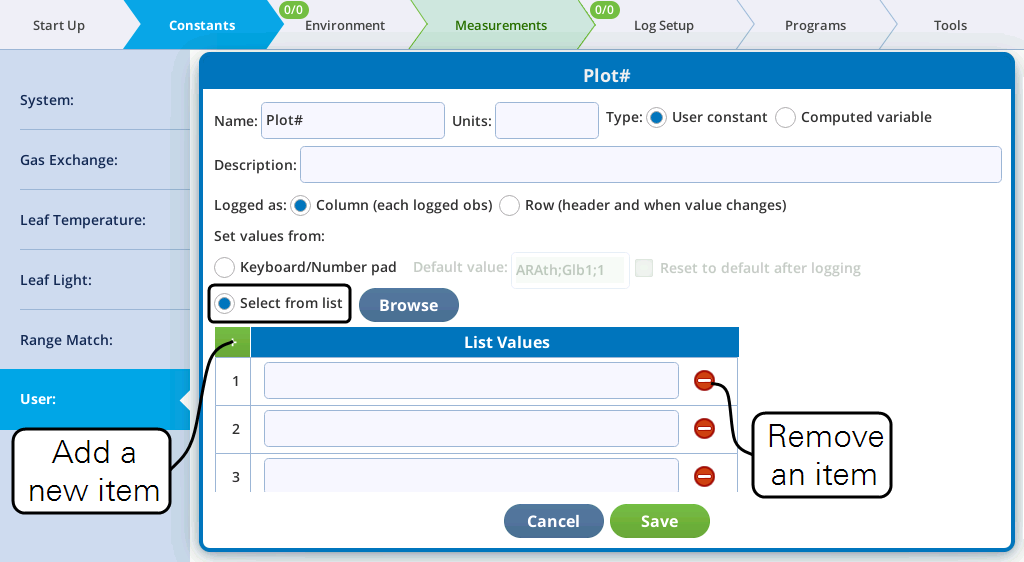
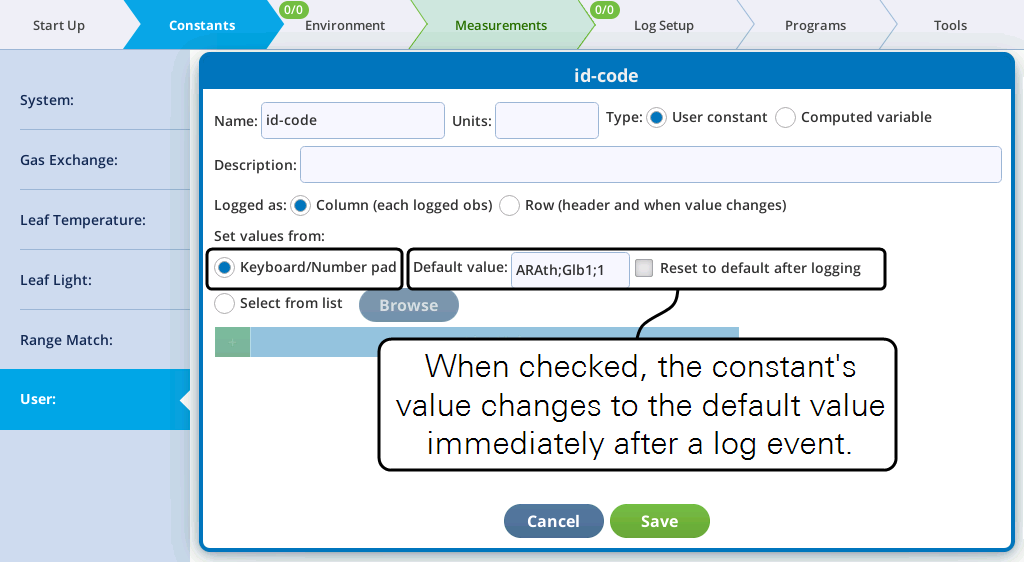
There are two basic types of constants: Those that are entered via the numeric keypad or keyboard, and those that are found in a menu list. For both numeric and list constants, they can be logged as a column with every record, or logged as a row once in the file header, and when its value changes.
Editing variables
User-defined variables are computed with a simple algebraic expression based on other variables or constants. The rules for entering the expression are:
- For variable names, use v1, v2, etc.
- For constants, either type them in explicitly, or refer to them as a1, a2, etc.
- Use parentheses for grouping. For example, a1 * (a2 + a3 * v1) * v1.
- Use +, -, *, and / for add, subtract, multiply, and divide.
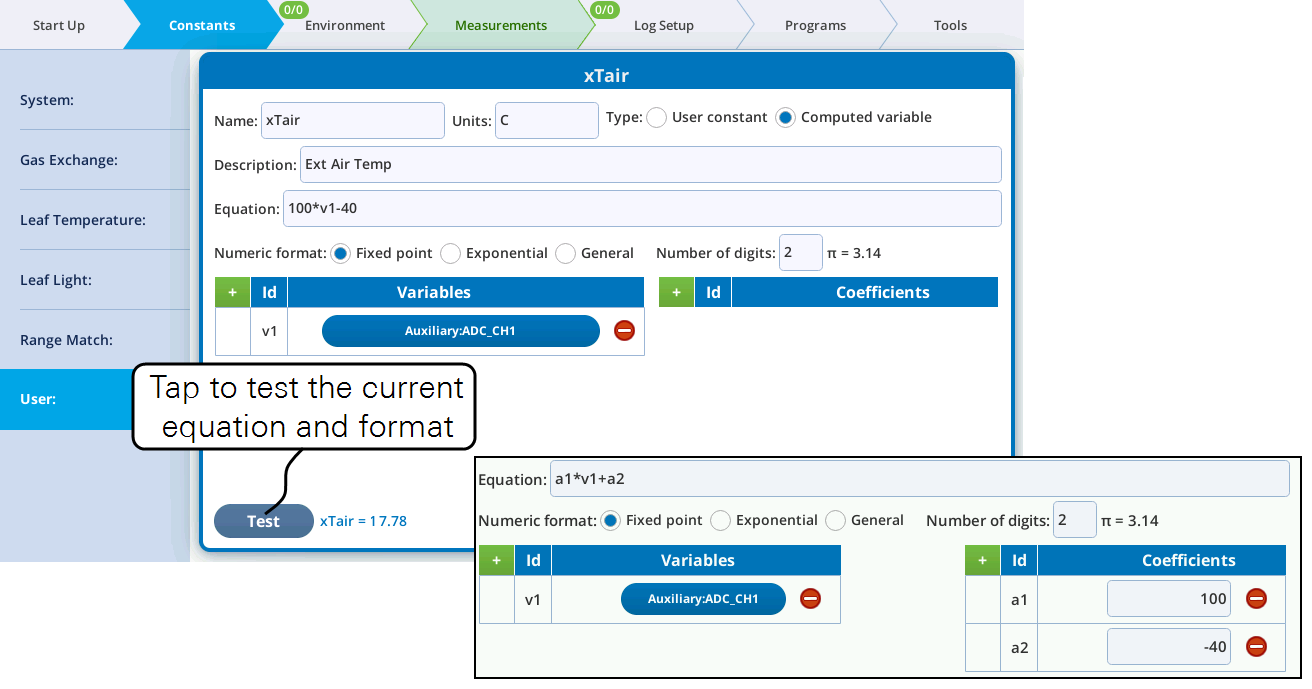
The Test button will use the current formula and format and the latest values of variables to compute a result. If there is an error (for example, referencing an undefined variable or coefficient), an error message is displayed instead. User-defined variables will show up in the Excel file with their equation.
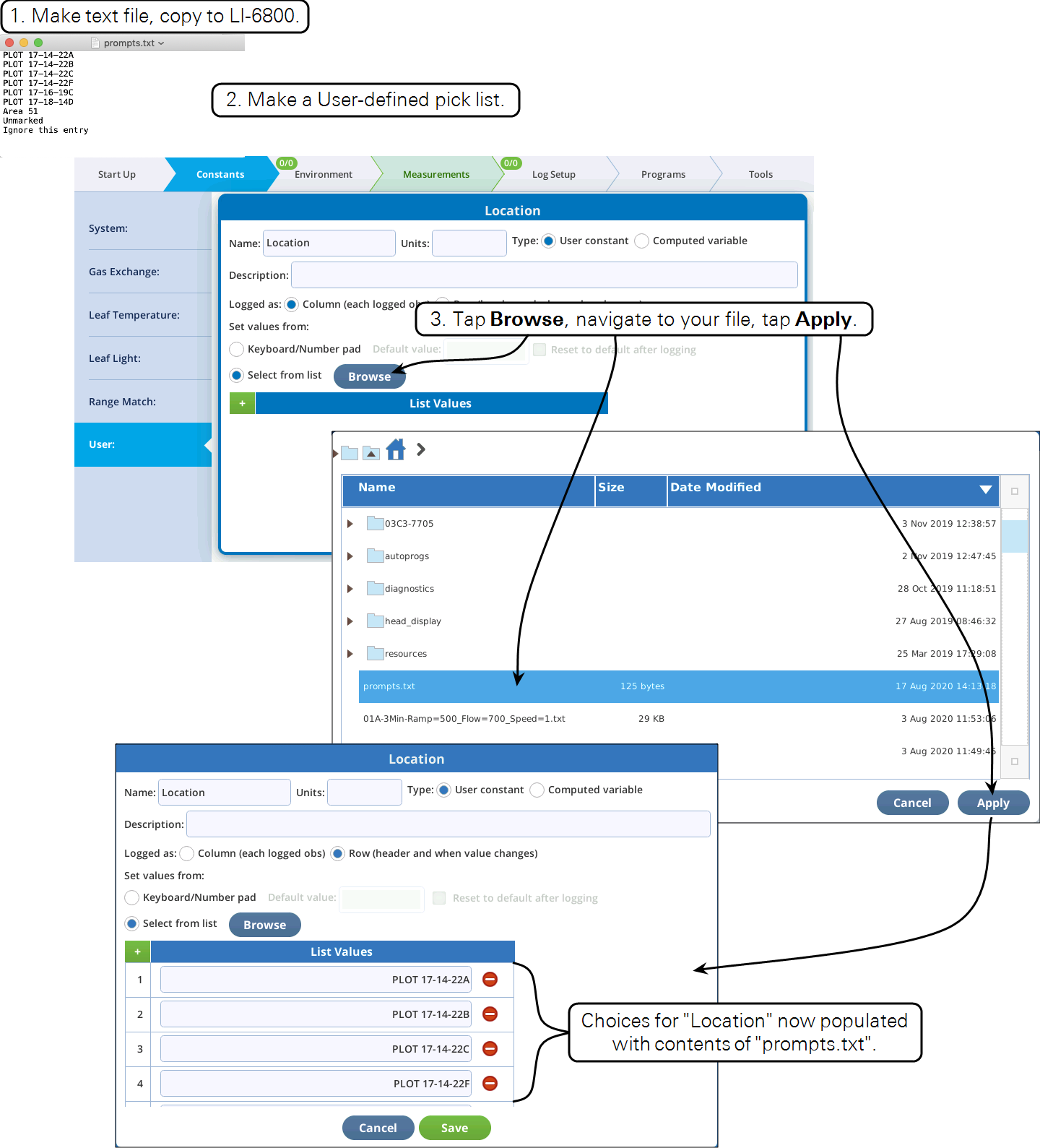
Creating user constants from an external file
User constants that have pre-set values (drop-down list) can now be made to use the contents of a file, as illustrated in Figure 3‑12.
You can choose how to log user constants—as a row or column—and enable prompting on logging. See Log settings for details.