


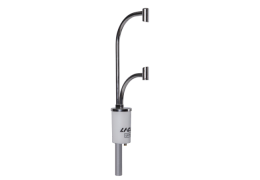
Adding the LI-710 to LI-COR Cloud
A Water Node is an LI-710 that is connected to LI-COR Cloud with an IoE Module. You need an account - either a new one or an existing account - and the IoE Module must be registered.
Creating an account
To create a new account:
-
Go to www.licor.cloud and select Register Account.
-
Fill in the form and accept the terms and conditions.
Use a unique organization name and user name.
-
Confirm your account.
Check your email (possibly the spam folder) for a verification message. Follow the instructions in the message to activate your account.
-
Log in.
Registering the IoE Module
To register a device:
-
Create a new account or log into your account at www.licor.cloud.
-
Get the IoE Module Serial Number and Device Key.
The key and serial number are on the IoE Module display (press left
 and down
  to view the system information).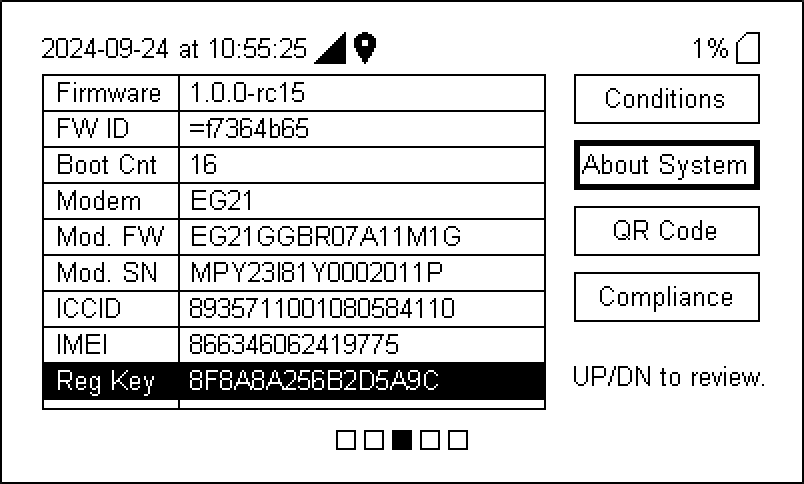
-
In LI-COR Cloud, select Register Device.
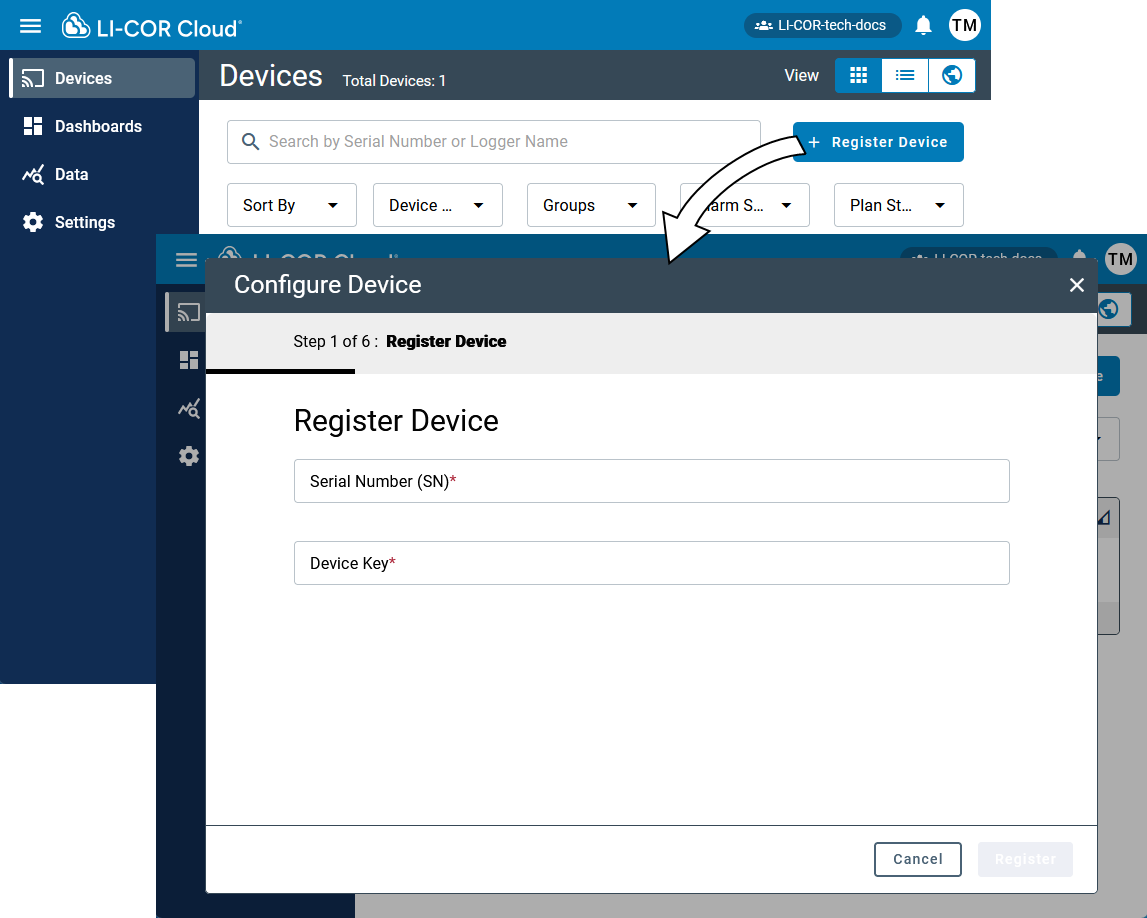
-
Enter the IoE Module Serial Number and Device Key.
-
After LI-COR Cloud verifies the information, click Register.
-
Activate the data plan.
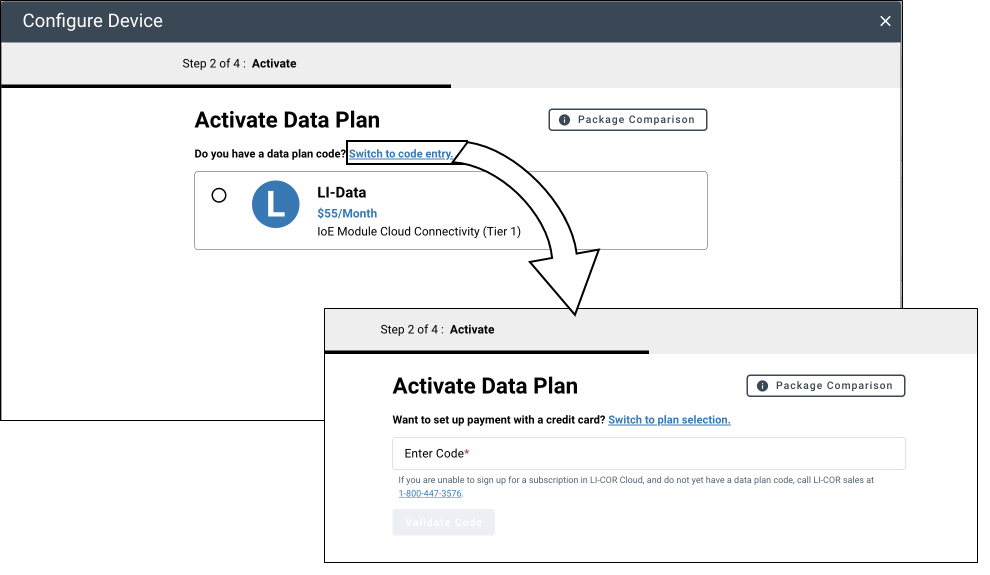
You can subscribe to LI-COR Cloud by setting up monthly payments with a credit card. If the payment is already configured, simply select the data plan and click Activate.
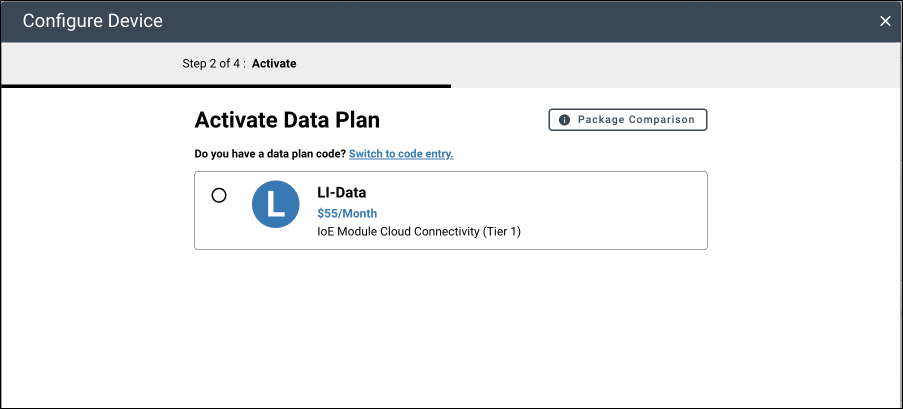
If the data plans are not active, you may need to enter payment information first. Follow these steps:
-
Click the Payment Information button.
-
Enter the required billing and credit card information and click Save.
-
Select a subscription plan.
-
Click Activate to start the subscription.
Alternatively, you can purchase a coupon code for a term of one year or more. If you purchase a coupon code, it will be emailed separately from the order confirmation. To use a coupon code, click Switch to code entry and enter the code.
-
-
Fill in any additional information and complete registration.
-
Save the settings.
The IoE Module is now registered with LI-COR Cloud. Next, you'll configure the Water Node (LI-710) or Carbon Node (LI-720).
Viewing the device information
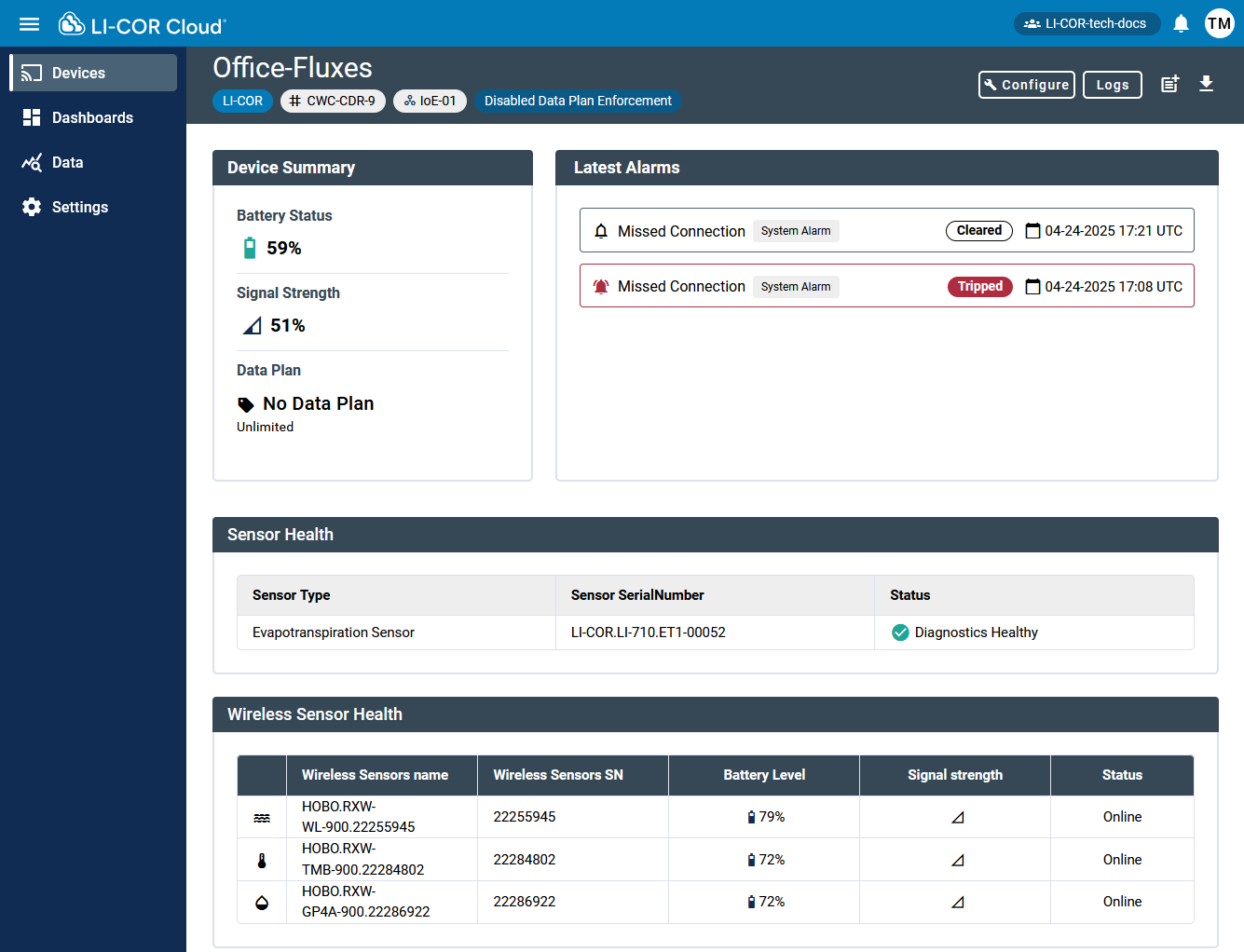
Click Devices and select a device for a quick overview of devices and status information.
Creating a Dashboard
After creating an account and registering the IoE Module that hosts the LI-710, you can customize the LI-COR Cloud Dashboard. Start by selecting default dashboard settings:
-
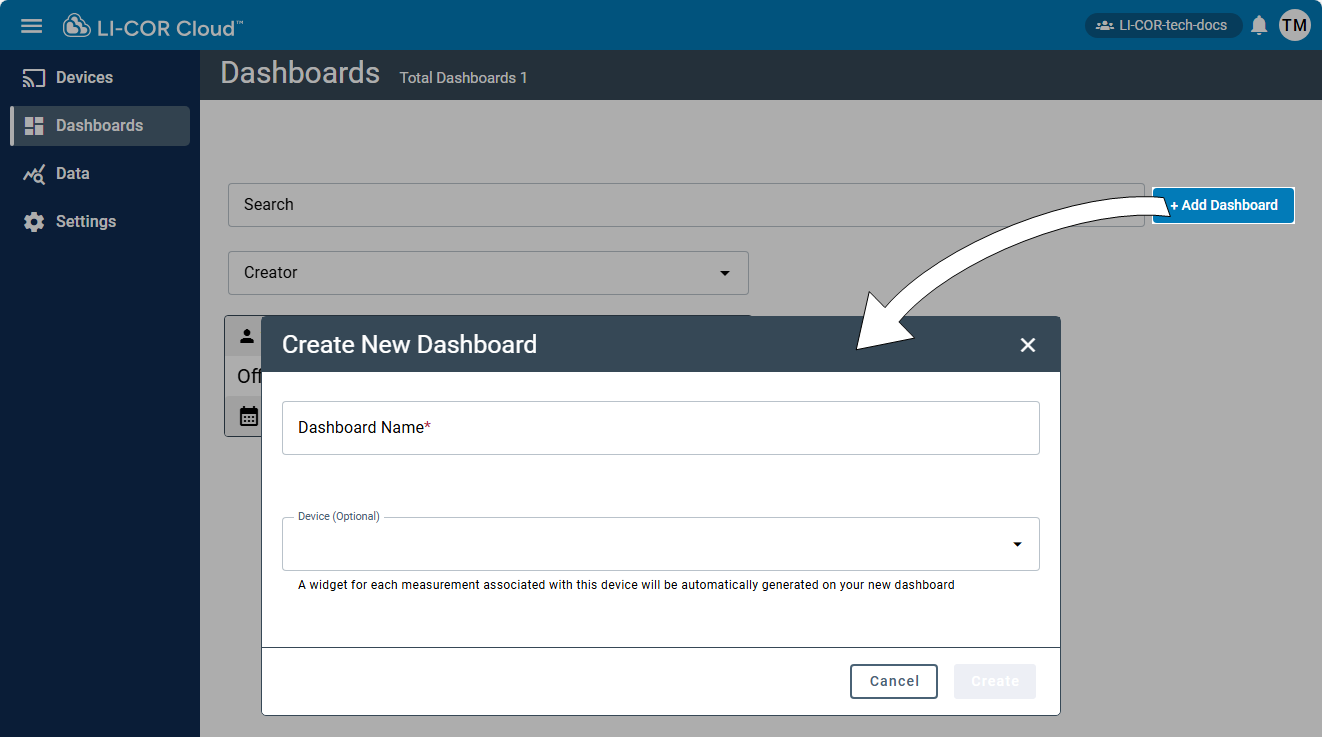
Select Dashboards and click +Add Dashboard.
-
Enter a Dashboard Name.
The name must be unique.
-
Select a Device Template.
LI-COR Cloud will list options for the widget for each measurement associated with this device.
-
Click Create.
LI-COR Cloud displays the new Dashboard along with some pre-configured widgets. Next, you can customize the Widgets or add others to the dashboard. If you have just powered everything on, there will not be much data to display so you may see an empty graph, but that will change as data accumulate. By default, the interface displays the last 1 day, but you can load a longer time span.
Congratulations! You have created a Water Node on LI-COR Cloud. Now, you can view data, process data, and perform advanced data processing, including Gap Filling, Total ET, Flux Footprints, and more. See Working with Water Node data for more details.