


Registering LI-COR IoE modules
To register a device:
-
Create a new account or log into your account at www.licor.cloud.
-
Get the IoE Module Serial Number and Device Key.
The key and serial number are on the IoE Module display (press left
 and down
  to view the system information).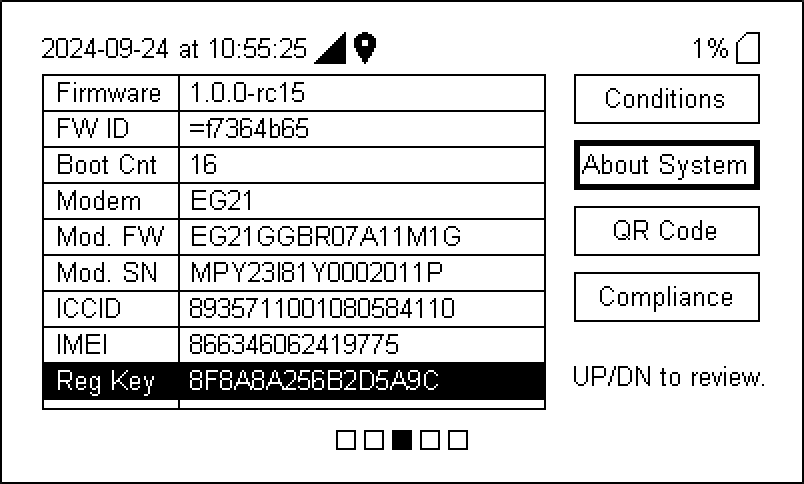
-
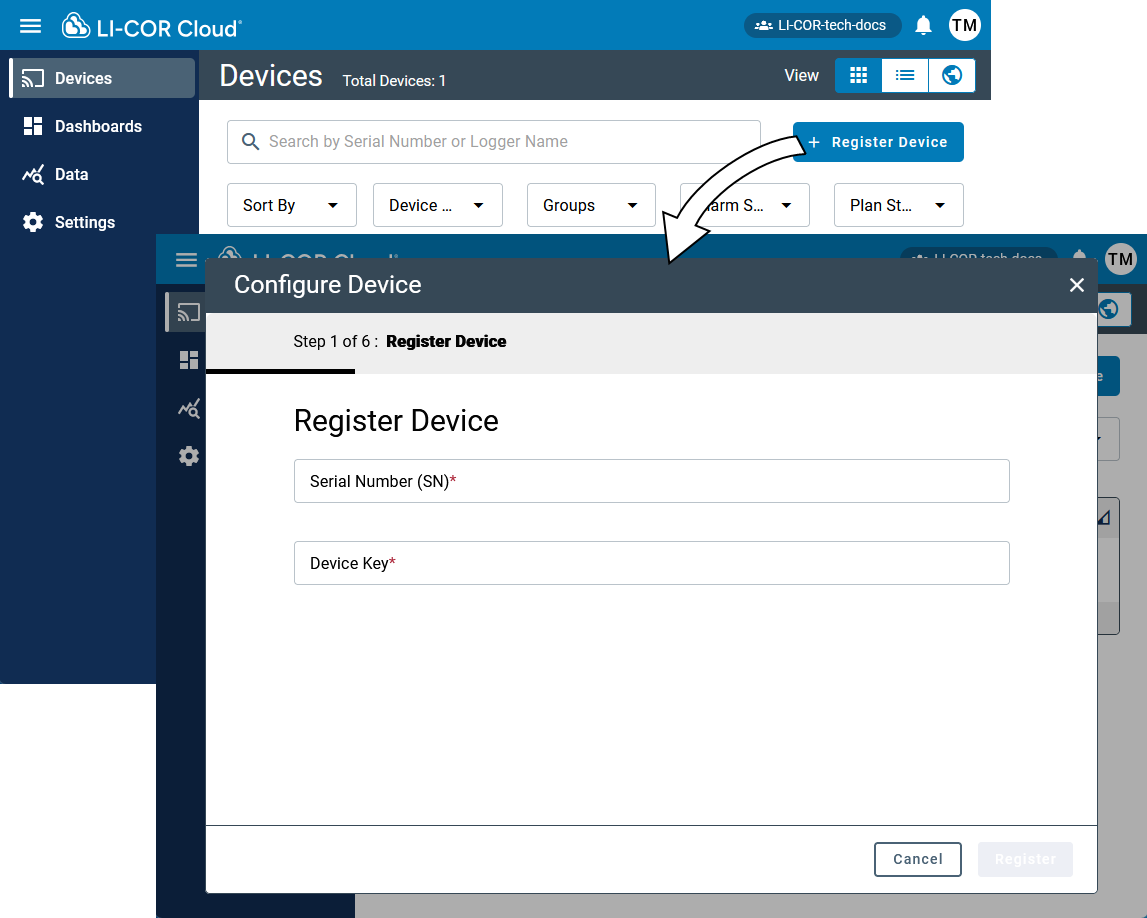
In LI-COR Cloud, select Register Device.
-
Enter the IoE Module Serial Number and Device Key.
-
After LI-COR Cloud verifies the information, click Register.
-
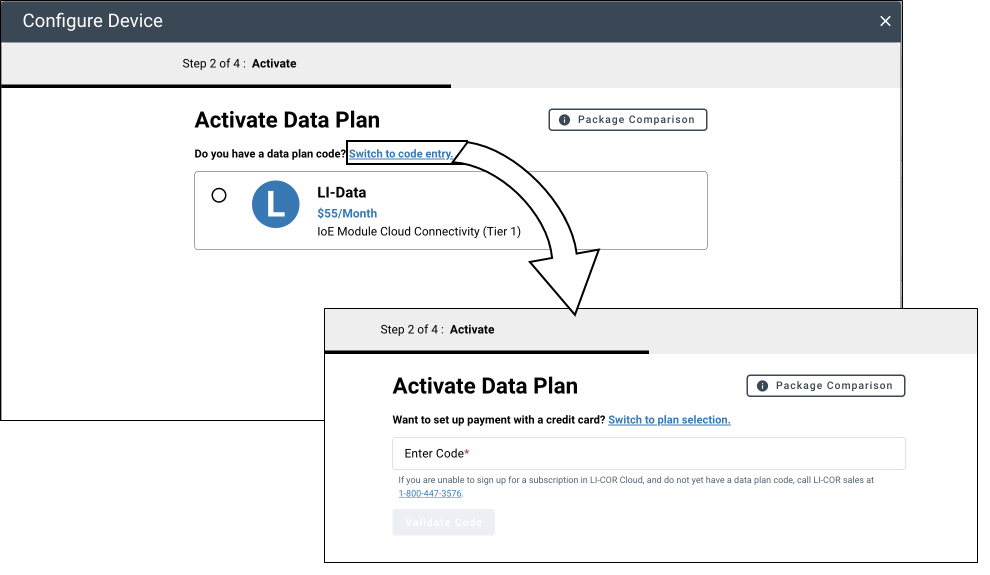
Activate the data plan.
You can subscribe to LI-COR Cloud by setting up monthly payments with a credit card. If the payment is already configured, simply select the data plan and click Activate.
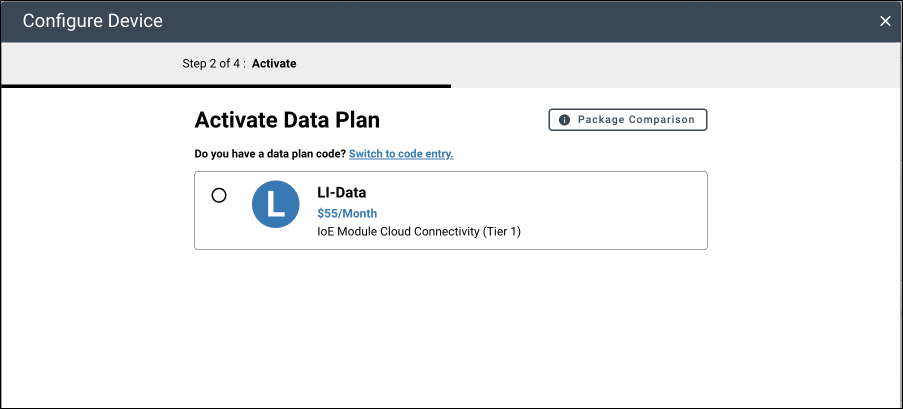
If the data plans are not active, you may need to enter payment information first. Follow these steps:
-
Click the Payment Information button.
-
Enter the required billing and credit card information and click Save.
-
Select a subscription plan.
-
Click Activate to start the subscription.
Alternatively, you can purchase a coupon code for a term of one year or more. If you purchase a coupon code, it will be emailed separately from the order confirmation. To use a coupon code, click Switch to code entry and enter the code.
-
-
Fill in any additional information and complete registration.
-
Save the settings.
The IoE Module is now registered with LI-COR Cloud. Next, you'll configure the Water Node (LI-710) or Carbon Node (LI-720).
Water Node (LI-710) and Carbon Node (LI-720) device details
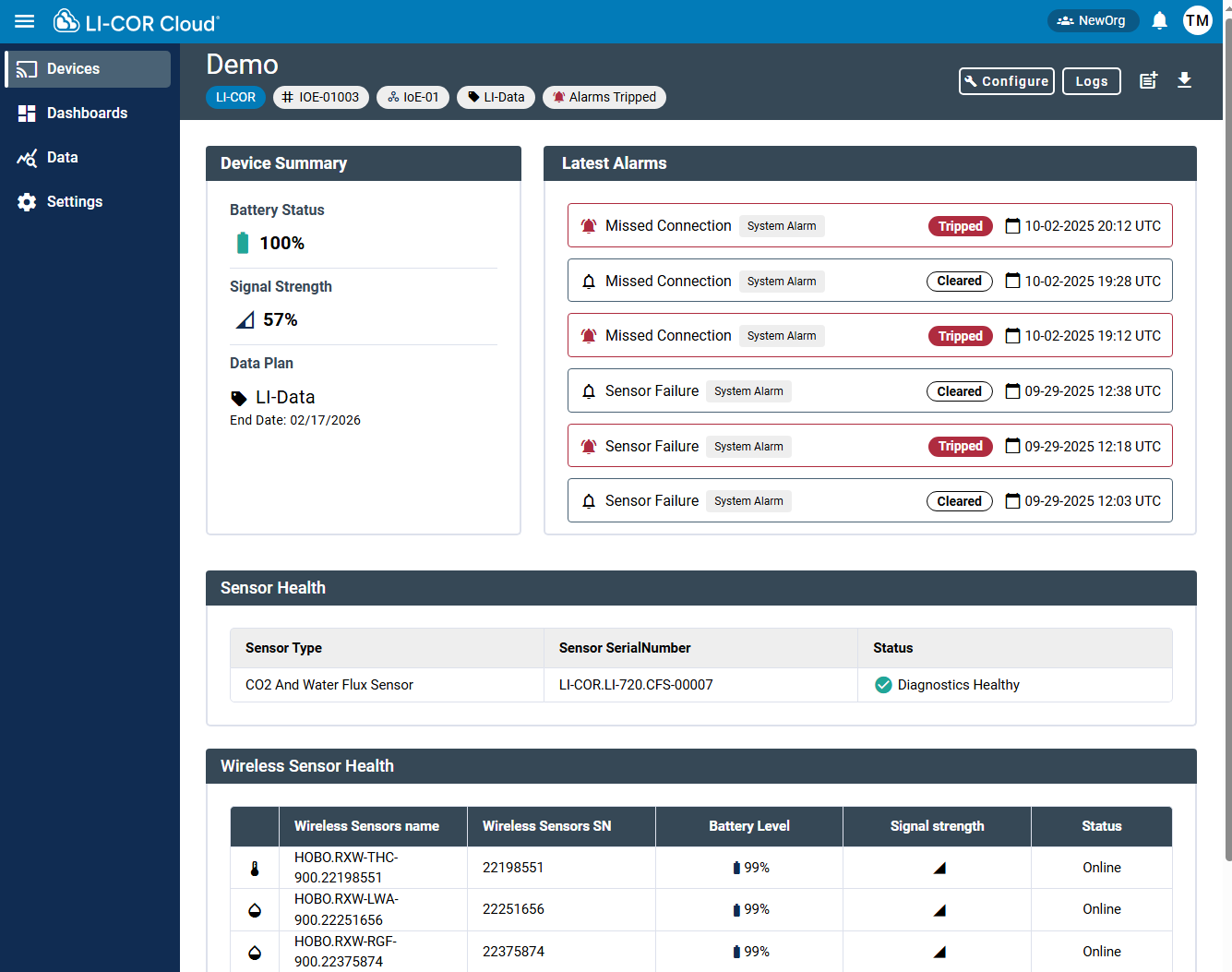
After registering a Water Node or Carbon Node, the details are given on the Devices page. You'll add the node to the Dashboards page and customize the dashboard for the node. All Water Nodes and Carbon Nodes should be configured completely.
General configuration
-
From the Devices tab, click a tile to open properties.
Then click Configure to view the Device Configuration.
-
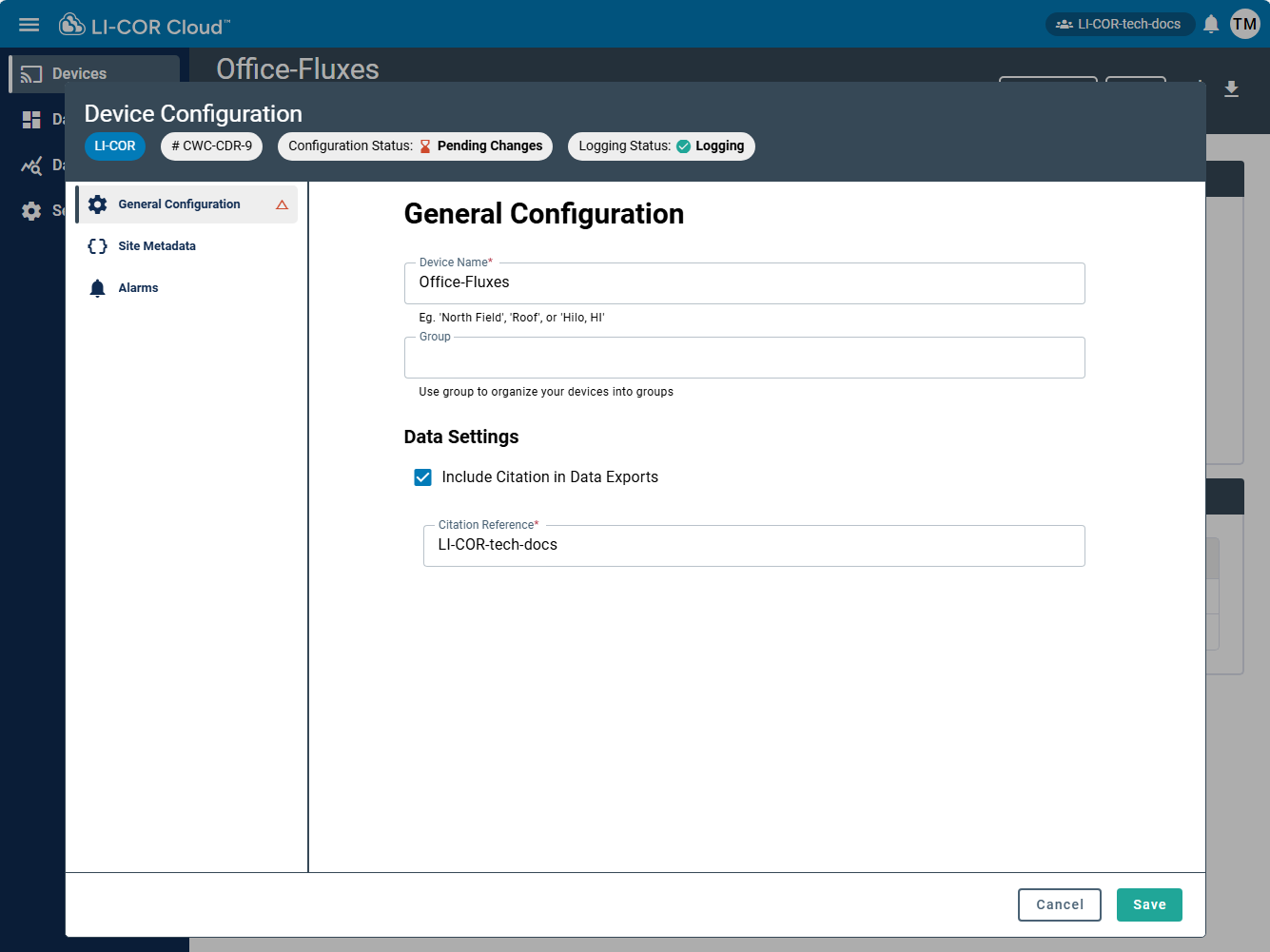
Assign a name.
The name should be unique and memorable.
-
Assign the node to a group.
You can choose from existing groups now or add groups and assign the node later.
-
Share the node with collaborators.
-
Choose your preferences for data.
If Include Citation in Data Exports is selected, data exported from this node will include a citation to the Citation Reference field.
-
Save the settings.
Site metadata
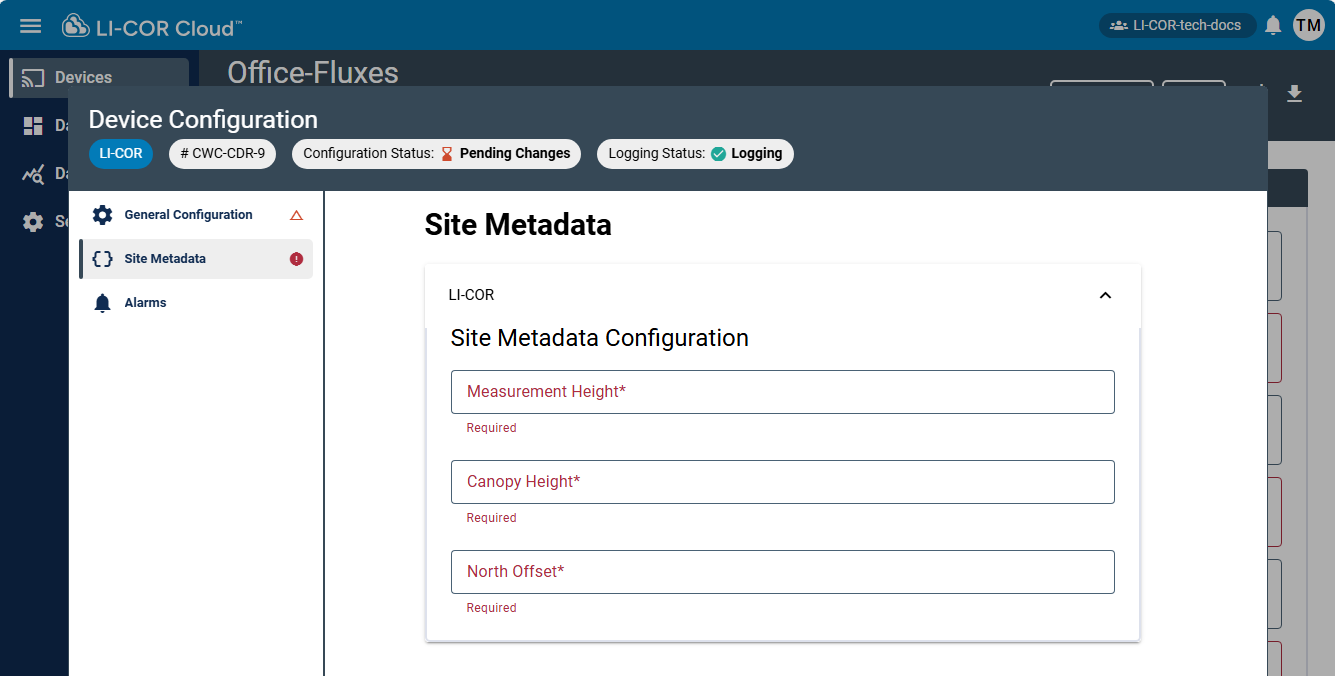
The IoE Module tab requires measurement height (meters), canopy height (meters), and a north offset. Degrees clockwise is a positive offset from magnetic north. Decimal values are accepted (also, recommended).
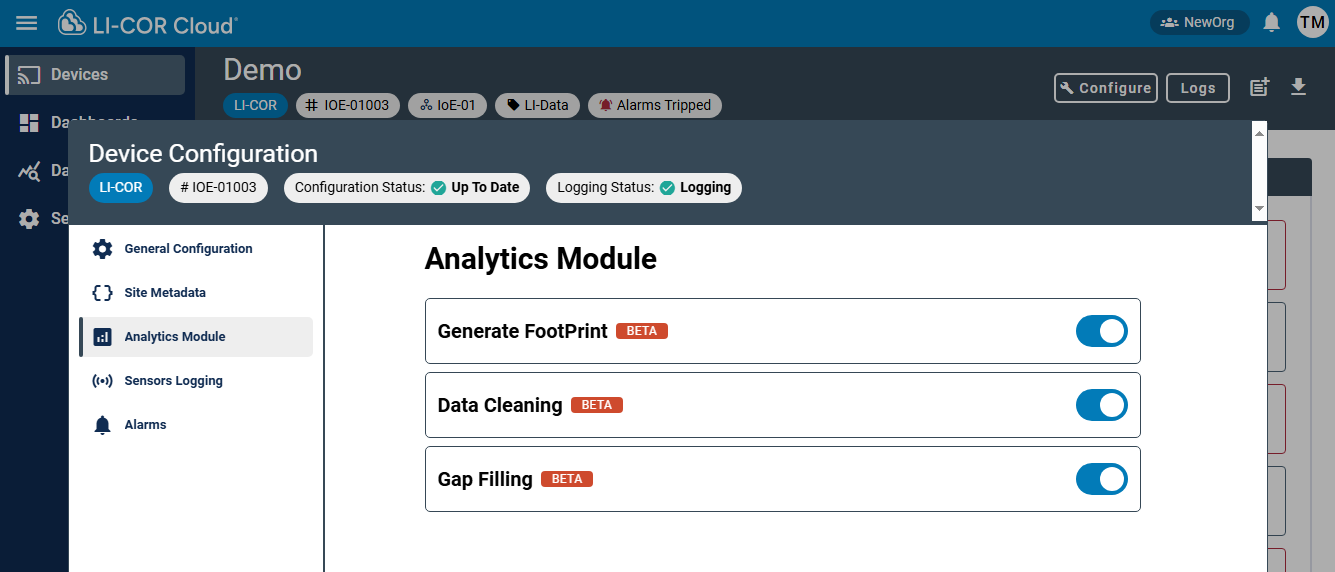
Analytics module
The Analytics Module presents options to work with data. It supports flux Footprint visualization, data cleaning, and gap filling.
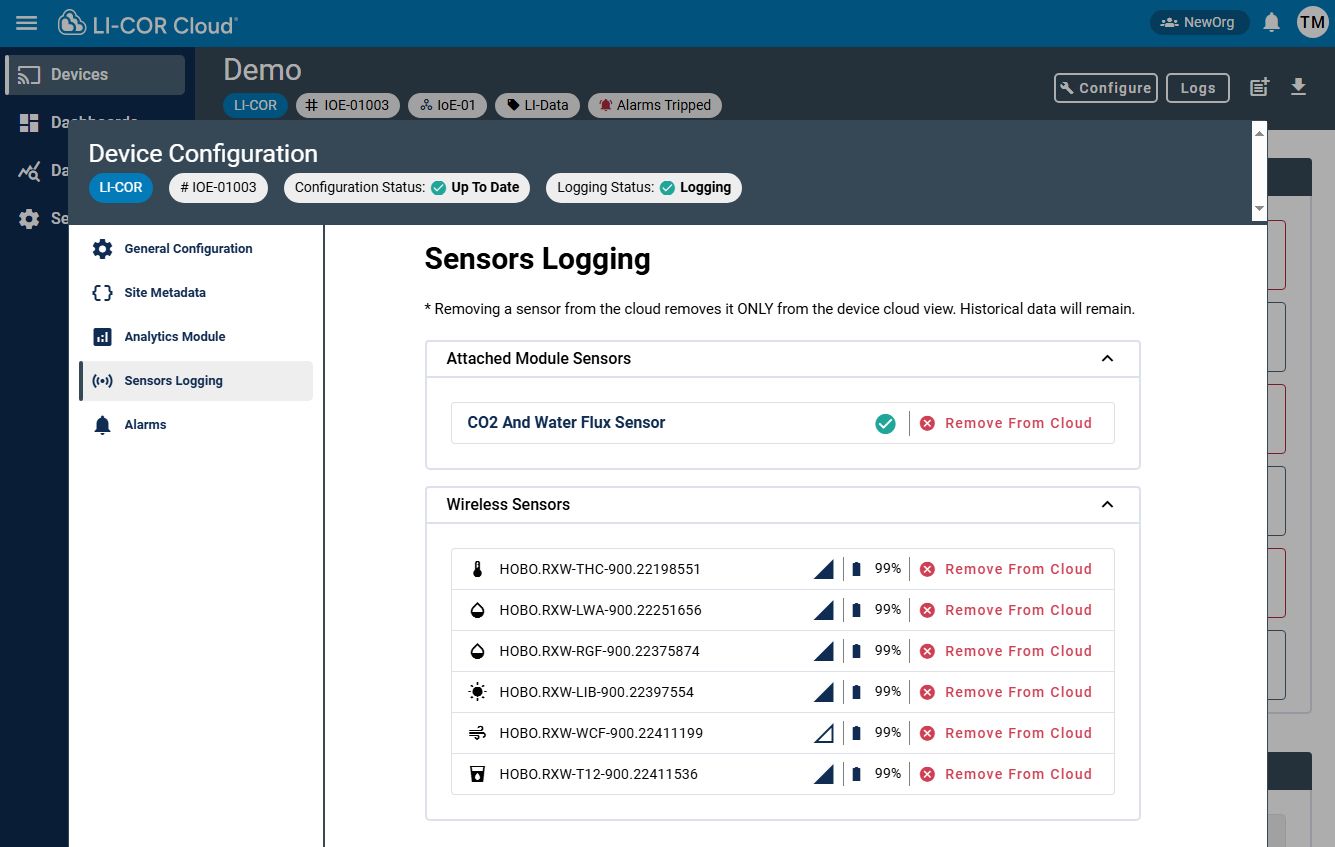
Sensor logging
Click Sensor Logging to view the sensors that are contributing data to the device. Here, you can remove devices from LI-COR Cloud.
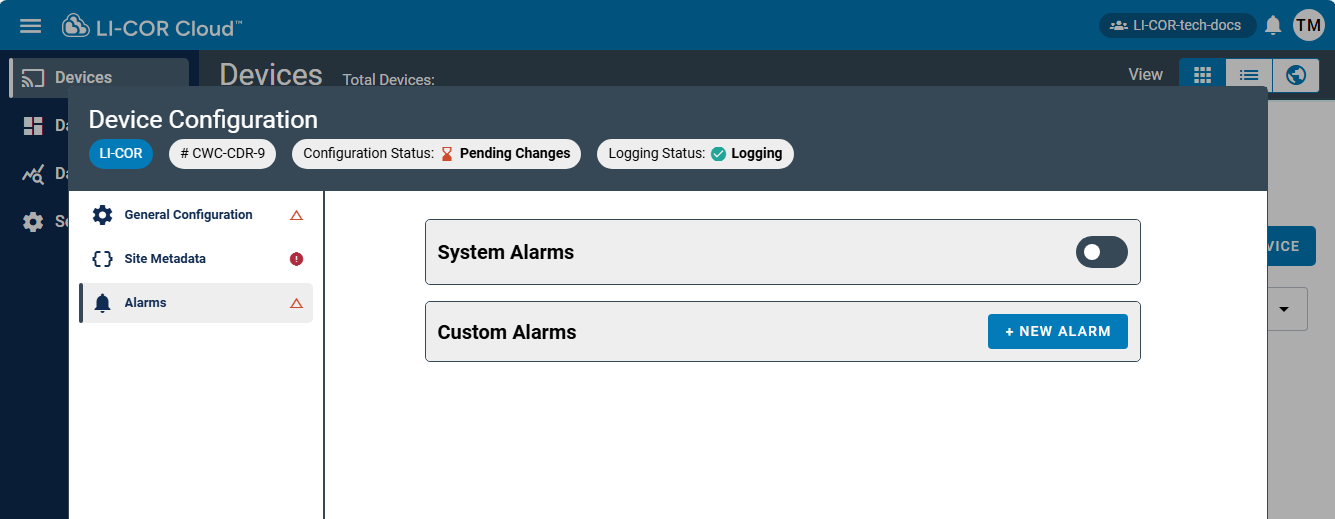
Alarms
IoE Module alarms are conveniently presented in the next tab.
See Devices for details.
After completing the basic device configuration, you can customize the Dashboards to suit your needs. See Dashboards and data visualization.