


Flow rate
The Rate tool computes a flow rate with outputs like liters per minute (LPM) or m3 per hour, as examples. The tool adds up the volume in a time period and then normalizes the value to the time window, resulting in volume over time. Flow rate is calculated as
5‑2flow rate = (∑(Vcurrent window) / twindow) × time factor
where Vcurrent window is the total volume measured in the current time window, twindow is the time period in minutes, and time factor establishes the period (1 for per minute, 60 for per hour, or 1,440 for per day).
For example, if the volume (Vcurrent window) is 600 gallons, the time period is one hour (twindow = 60), and you are computing the rate on a per hour basis (time factor = 60), the equation becomes:
5‑3flow rate = (600 / 60) × 60 = 600 gallons per hour
Notes:
-
The flow rate is the average flow over the time period.
-
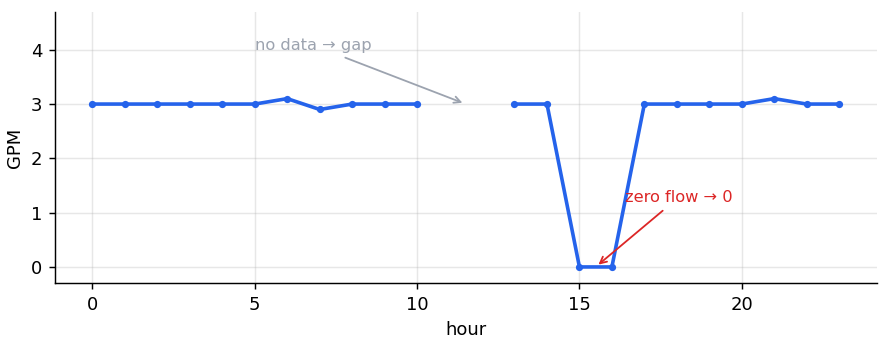
If no data were collected (missing readings), no data point is shown (a gap), rather than a misleading number.
-
When flow is 0, the reported rate is 0.
-
If a device logging frequency changed in the past, late arriving data are still calculated correctly for the time interval to which they belong.
Flow rate settings
The flow tool has the following fields:
| Field | Status | Description |
|---|---|---|
|
Channel name |
Required |
The name displayed for the calculated measurement. Accumulation by default. |
|
Time zone |
Required |
The time zone where the measurement is taken. |
|
Time frame |
Required |
The time period for the calculation. Hourly, Daily, Weekly, Monthly, or Yearly. If Weekly, you can also set a day to use as the start of the week. |
|
Param |
Required |
Set automatically after selecting a device and sensor. |
|
Device |
Required |
The device that contributes to the measurement. |
|
Sensor |
Required |
The sensor in the device. |
|
Aggregation type |
Required |
Accumulation is selected by default. |
|
Unit |
Required |
The units available are displayed. |
|
Time Unit |
Required |
Select per minute, per hour, or per day from the list. |
|
Measurement type |
Required |
Select the type from the list of available options. |
|
Units |
Required |
Typically automatically populated based on a measurement type. If a choice is available, open the menu to see options and select the units. |
Configuring a flow rate
To configure a flow rate calculation:
-
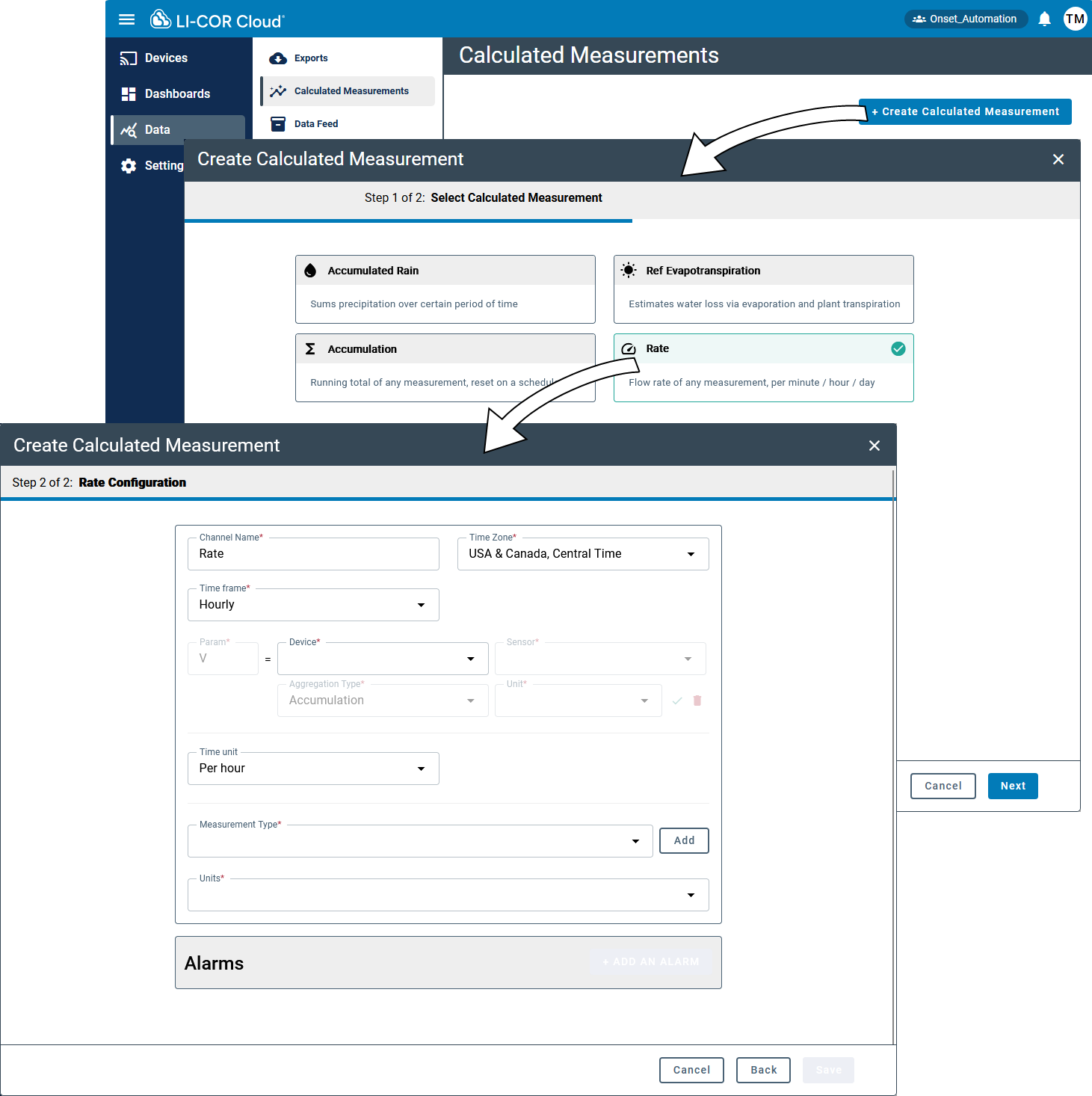
Select Data > Calculated Measurements and click + Create Calculated Measurement.
-
Select Flow and click Next.
-
Configure the settings for the measurement.
Several parameters are preconfigured, but you can change them to suit your needs.
-
Name the channel and set the time zone.
-
Set a time frame.
-
Configure the V parameter.
-
Select a Device that hosts the sensor.
-
Select the Sensor that contributes the data.
-
Click the check mark to accept the V configuration.
-
-
-
Select the Time units: Per minute, Per hour, or Per day.
-
Configure the measurement type and units.
The list includes existing valid options, but you probably want to add a new measurement, so click ADD and enter the parameters. Click Create when satisfied.
-
Save the settings.
Now you can configure alarms and view data directly on the devices tab or add the calculated measurement to a Dashboard and view the data in a Widget (see Creating dashboards).
Configuring a flow alarm
To configure an alarm for the calculated measurement, click +Add Alarm in the interface and enter the required information:
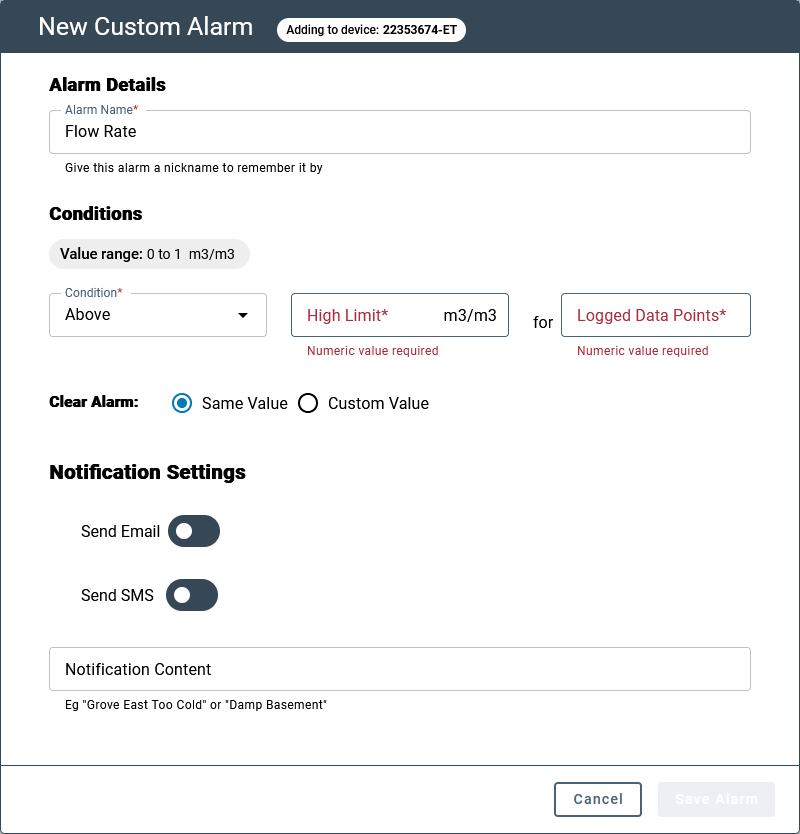
Be sure to Save the settings.