



Accumulation totalizer
The totalizer (Accumulation) tool computes a running total of a measurement over a time period. It adds up new readings as they come in and starts over at the beginning of each period. Although developed for water, you can build a totalizer for any measurement and choose any unit. Accumulation is computed as
5‑1Total = Initial Value + ∑(V) × M + O
where the Initial Value establishes a starting balance at a specified time if different from zero (zero is common), and the summation includes readings that represent volume measured by a sensor. The sum can be scaled by adjusting the slope and offset, where V is the parameter from the sensor, M is a multiplier, and O is an offset. To use unmodified sensor readings, leave M at 1 and O at 0.
Review the following scenarios to learn about use cases supported by the accumulation totalizer.
-
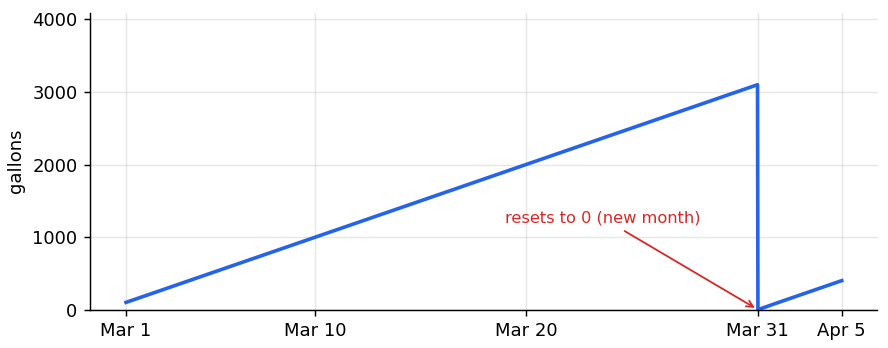
You are interested in the total flow per month and need the reading to reset to 0 at the beginning of each month.
-
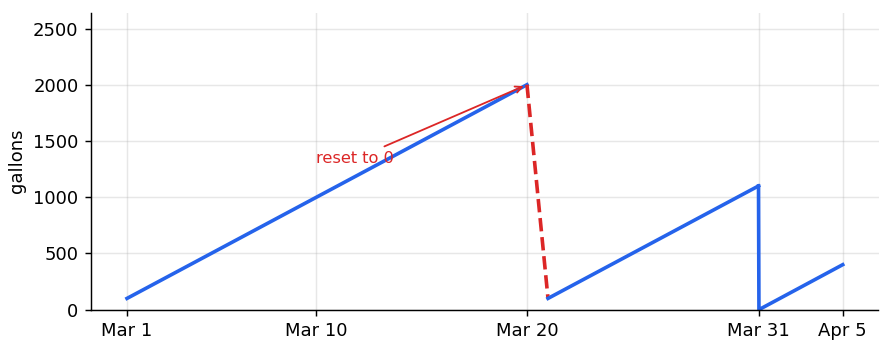
You can reset the totalizer to 0 at a different time from the scheduled time.
-
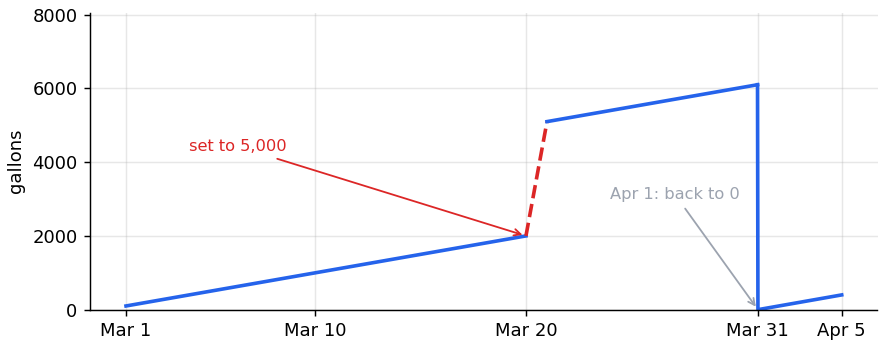
You can apply an offset to align the measurement to match another parameter. The offset is zeroed at the end of the period, as scheduled.
-
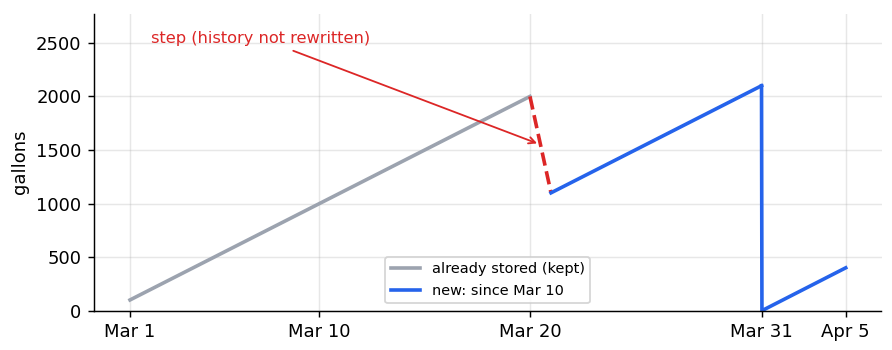
You need to apply a reset (initial value) that is effective on an earlier date of the current month. It is a backdated reset within the current month.
-
You need to adjust the yearly totalizer to match a reading.
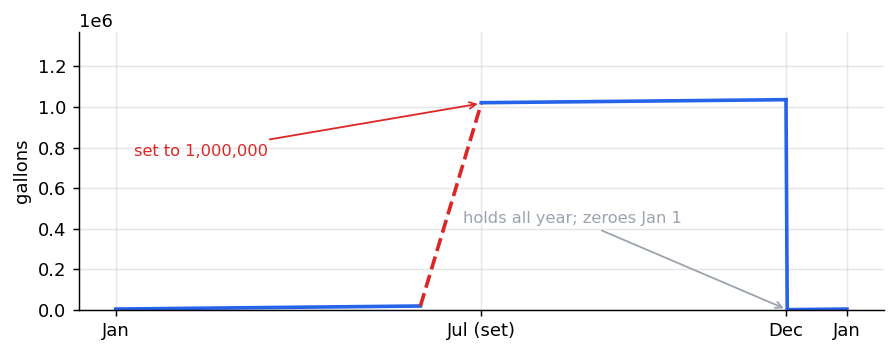
Notes:
-
Backdating to a previous closed period is not allowed. If using monthly periods and the current month is March, you cannot backdate to a day in February. If you want to see the total between two arbitrary dates, use the Accumulation Widget instead.
-
If a wireless sensor is offline for a period of time after a user sets a zero, the data will arrive when the sensor is back online. The data arriving later will still be shown correctly.
-
If you apply two resets in a month, the most recent reset is applied going forward.
-
You can set an "opening balance" as a value that is effective at a specified time (Initial value and Initial value effective time).
-
The totalizer is periodic. It always resets on the chosen period. For an open-ended total, use the Accumulation Widget instead.
Accumulation settings
The accumulation totalizer has the following fields:
| Field | Status | Description |
|---|---|---|
|
Channel name |
Required |
The name displayed for the calculated measurement. Accumulation by default. |
|
Time zone |
Required |
The time zone where the measurement is taken. |
|
Logging frequency |
Required |
The period for the calculation. Hourly, Daily, Weekly, Monthly, or Yearly. If Weekly, you can also set a day to use as the start of the week. |
|
Param |
Required |
Set automatically after selecting a device and sensor. |
|
Device |
Required |
The device contributing to the measurement. |
|
Sensor |
Required |
The sensor in the device. |
|
Aggregation type |
Required |
Accumulation is selected by default. |
|
Unit |
Required |
The unit of the measurement selected in the Sensor field. |
|
M |
Optional |
Multiplier for the accumulation. Editable. |
|
O |
Optional |
Offset for the accumulation. Editable. |
|
Initial value |
Optional |
Zero by default but can be any value. An offset that can account for measurements that are not part of the current period, for example. Used for the current period |
|
Initial value effective time |
Optional |
The date and time to apply the initial value. |
|
Reset period |
Required |
Specifies when to reset the calculation. Hourly, Daily, Weekly, Monthly (default), Yearly or Never. Each period has options related to the selected period. |
|
Result |
Automatic |
The value after applying a multiplier and offset. |
|
Measurement type |
Required |
Select the type from the list of available options. |
|
Units |
Required |
Typically, automatically populated based on a measurement type. If a choice is available, open the menu, see options and select the units. |
Configuring an accumulation
This example configuration shows how to configure a totalizer to see the cumulative volume delivered over a time period. In this example, we are interested in computing the total volume of water over the prior week starting on Monday.
-
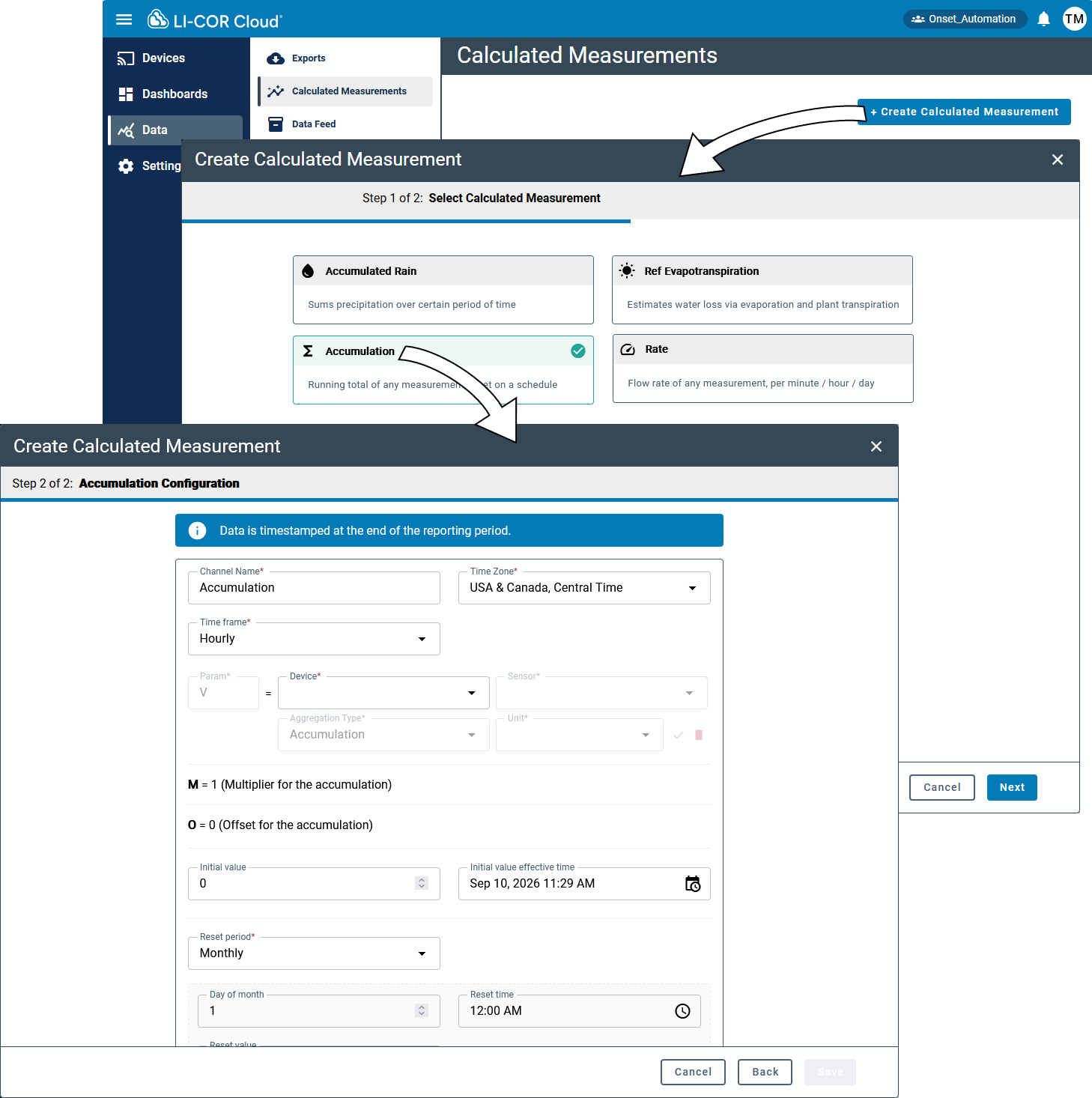
Select Data > Calculated Measurements and click + Create Calculated Measurement.
-
Select Accumulation and click Next.
-
Configure the settings for the measurement.
Several parameters are preconfigured, but you can change them to suit your needs.
-
Name the channel and set the time zone.
-
Set a time frame and start day.
-
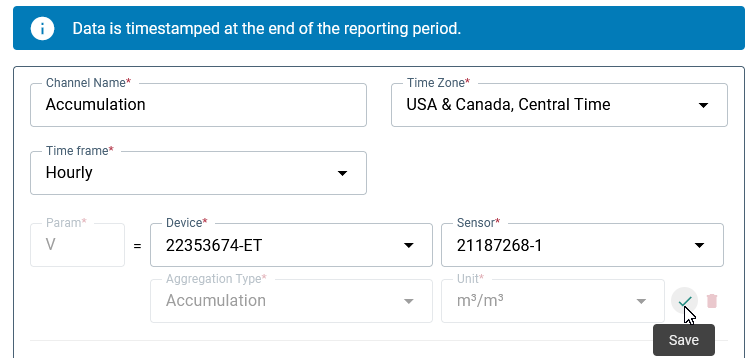
Configure the V parameter.
-
Select a Device that hosts the sensor.
-
Select the Sensor that contributes the data.
-
Click the check mark to accept the V configuration.
-
-
-
Configure the slope (M) and offset (O) if you need to change the slope or offset applied to the V parameter.
Click the Edit button to change the slope or offset. You can also add a description to each of these parameters.

-
Optionally, enter an Initial Value other than 0 and set the date and time for the initial value to be applied.
This accounts for measurements that occurred before the beginning of the calculated record.

-
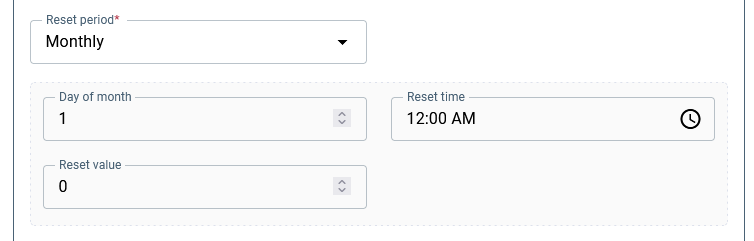
Configure the Reset period and settings.
The options depend on the selection, but in most cases, you'll apply a reset time and value.
-
Configure the measurement type and units.
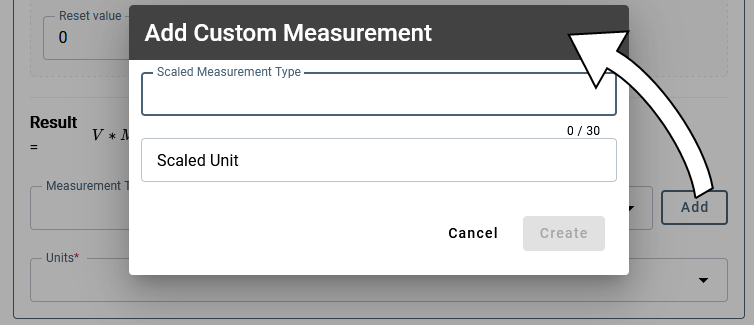
The list includes existing valid options, but you probably want to add a new measurement, so click ADD and enter the parameters. Click Create when satisfied.
-
Save the settings.
Now you can configure alarms and view data directly on the devices tab or add the calculated measurement to a Dashboard and view the data in a Widget (see Creating dashboards).
Configuring an accumulation alarm
To configure an alarm for the calculated measurement, click +Add Alarm in the interface and enter the required information:
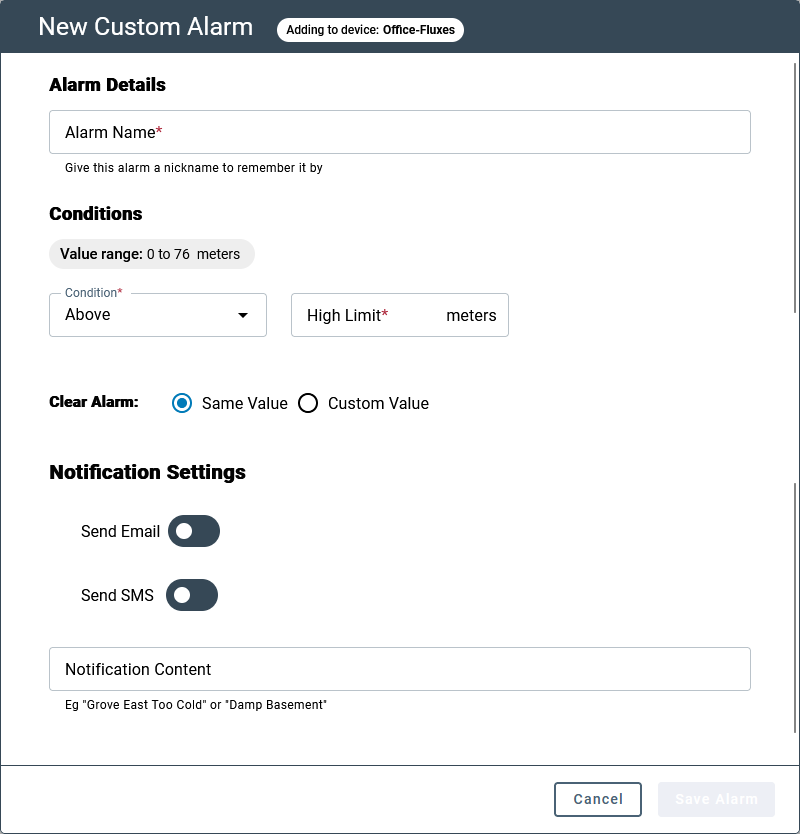
Be sure to Save the settings.